175 settings · 19 sections
Configuration
There are two ways in and they are the same thing: a panel you open with F7 while the game runs, and a text file beside the DLL. They read the same settings and print the same explanations, so whichever you prefer, you are not missing anything by using it.
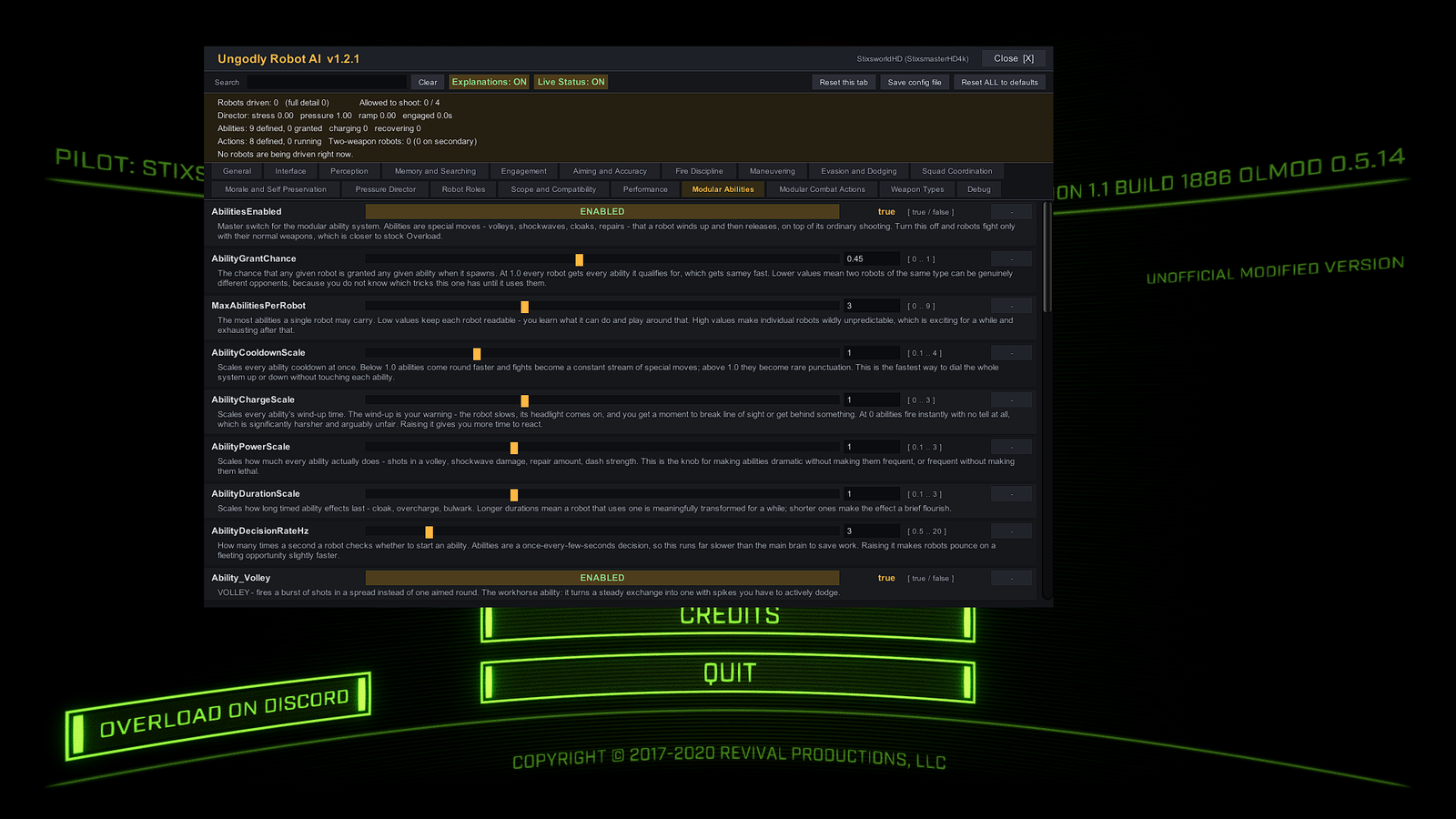
AbilitySuppressesNormalFire in v1.2.2 and is
otherwise unchanged. Click to open at full size and read the descriptions.The panel
What each part does
- Opening it
- Press F7. Rebind with
ToggleGuiKeyin the Interface section. It will not open while OLMod's console is up — dismiss that with ` first. - Status strip
- The khaki band across the top. Robots driven, how many are allowed to shoot, director stress and pressure, abilities defined and granted, actions running. It is the fastest way to understand what the mod is doing — open it during a firefight and watch the numbers move as the room reacts to you.
- Search
- Matches across every setting name, section and explanation at once. Faster than remembering which of the 19 tabs a setting lives on.
- Explanations
- Toggle the printed descriptions off for a denser list once you know your way around.
- Reset buttons
- One per row, plus Reset this tab and Reset ALL to defaults. A row button lights up only when that setting differs from its default, so a glance down the panel shows everything you have touched.
- Save config file
- Writes your current values back to the
.cfg. Changes take effect immediately either way; this is for making them survive a restart. - While it is open
- Your ship stops responding to your controls, so you cannot fly into
a wall while reading, and the cursor becomes a normal pointer. The fight carries on
unless you turn on
GuiFreezesGameplay— so you can change a value and watch its effect live.
The file
UngodlyRobotAI.cfg
It sits beside the DLL in the olmod directory. Every setting is documented in place with its allowed range, its default and a plain-English explanation, which makes the file usable as documentation on its own.
# ----------------------------------------------------------------------------
[01 - General]
# ----------------------------------------------------------------------------

# Master switch for the whole mod. Turn this off and every robot instantly goes
# back to the stock Overload AI with nothing of this mod running. Useful for an
# A/B comparison mid-level: toggle it, fly the same corridor, and feel the
# difference.
#
#   Range:   true / false
#   Default: true
Enabled = true- It reloads live
- The file is watched while the game runs. Save a change and it is picked up within a second or two — no restart, no returning to the menu.
- Your values survive
- The file is regenerated at startup, so comments you add are lost. Your values never are. A file from an older version gains the new settings automatically rather than being replaced.
- Bad values are clamped
- Anything outside a setting's stated range is pulled back into it and logged, rather than being accepted silently and causing something strange three rooms later.
- It is plain text
- Any editor will do. Keeping a copy of a tuning you like is copying the file somewhere.
The map
19 sections
| Section | Settings | Covers |
|---|---|---|
| 01 · General | 5 | Master switch; the global aggression, intelligence and skill dials |
| 02 · Interface | 6 | Toggle key, panel scale, opacity, freeze-on-open |
| 03 · Perception | 8 | Sight range, field of view, reaction times, hearing, cloak detection |
| 04 · Memory & Searching | 5 | How long you are remembered, search aggression and spread |
| 05 · Engagement | 6 | Preferred ranges, pressing a hurt player, group engage stagger |
| 06 · Aiming & Accuracy | 7 | Spread, lead accuracy and error, warm-up, turn rate |
| 07 · Fire Discipline | 7 | Fire rate, bursts, who shoots, friendly-fire avoidance |
| 08 · Maneuvering | 11 | Speed, strafing, flanking, vertical attacks, weaving, wall clearance, stuck recovery |
| 09 · Evasion & Dodging | 6 | Dodge skill, reaction window, cooldown, splash scatter |
| 10 · Squad Coordination | 7 | Contact sharing, distress calls, flank spacing, focus fire |
| 11 · Morale | 5 | Retreat thresholds, rally points, reaction to allies dying |
| 12 · Pressure Director | 5 | Strength, recovery window, max attackers, skill ramp |
| 13 · Robot Roles | 7 | Frequency of each of the five jobs, and how long a job is held |
| 14 · Scope & Compatibility | 8 | Bosses, melee robots, Guide-Bot, turrets, level scripts, multiplayer |
| 15 · Performance | 6 | Think rate, sight-check budget, brain cap, LOD distance |
| 16 · Modular Abilities | 39 | Master switch, grant chance, cooldown/charge/power scales, normal-fire suppression, per-ability tuning |
| 17 · Modular Combat Actions | 23 | Master switch, grant chance, influence limits, per-action tuning |
| 18 · Weapon Types | 11 | Two-weapon loadouts, secondary projectile, switch mode, distance, timing |
| 19 · Debug | 3 | Verbose logging, on-screen overlay, timing readout |
Where to start
Five dials that fix most complaints
Do not start by changing thirty settings. Almost every "it feels wrong" reaction traces back to one of these.
| If it feels… | Change | Why that one |
|---|---|---|
| Too hard | Lower GlobalSkill, raise AimSpreadScale, or lower MaxSimultaneousShooters |
Skill covers aim tightness, lead, reaction and dodge timing in one dial. Fewer simultaneous shooters lowers incoming volume without making anyone dumber. |
| Too easy | Raise GlobalSkill and FlankTendency |
Flanking is what stops a room being solvable by holding one corner. |
| Unfair rather than hard | Lower LeadAccuracy, raise LeadErrorScale |
Unfairness in a shooter almost always traces to prediction, not damage. A robot that always leads perfectly is not difficult, it just has no counterplay. |
| Hopeless in big rooms | Lower MaxActiveAttackers and MaxSimultaneousShooters |
Caps how much of a large group can press at once, so the room stays a fight rather than a wall of fire. |
| Robots look indecisive | Raise RoleCommitSeconds |
The single setting that most controls whether a robot commits to what it is doing. Set it to 0 and roles reshuffle constantly, which reads as approaching and standing off without ever completing either. |
| Quiet during abilities | Set AbilitySuppressesNormalFire to Never |
By default robots hold their ordinary fire through an ability's wind-up, so the charge stays a readable warning. Never makes abilities purely additional and robots shoot straight through their own wind-ups — more incoming fire, and much harder to read. ChargeAndRecovery goes the other way and leaves them quiet and punishable afterwards. |
| Robots scraping along walls | Raise DestinationClearance, then lower StuckSpeedThreshold |
Clearance is how much space a robot insists on leaving between itself and a wall when it picks somewhere to fly to. If they still jam, a lower speed threshold makes stuck recovery trigger sooner. Lower the clearance instead if they hang back from doorways they could have flown through. |
| Clawbots not hurting you | Check AffectMeleeRobots is off |
A melee robot's swing is not a weapon — it lives inside the movement routine this mod would otherwise replace. Turned on, Clawbots, Blade robots and Detonators fly like gun robots and stop being able to hurt you at all. Off is the default for exactly that reason. |
Getting unstuck
The recovery chain
Four settings in Maneuvering decide what happens when a robot cannot get where it is trying to go. They fire in order, each one taking over when the last has not worked.
- DestinationClearance
- Prevention, and the one to reach for first. How much clear space, in metres, a robot insists on leaving between itself and a wall when it picks somewhere to fly to — so it stops short instead of aiming at a point that turns out to be inside geometry. Raise it if robots scrape along corners; lower it if they hang back from doorways they could have flown through. Default 2.2, range 0.5–10.
- StuckDetection
- The safety net. Watches for a robot that is being told to move and is not actually moving, and gets it out. Leave this on — with it off, a robot that jams itself against geometry stays there for as long as its destination stands, which during a search can be the rest of the level. Default on.
- StuckSpeedThreshold
- How slow counts as stuck, in metres per second. Raise it to catch robots creeping along a wall rather than fully jammed; lower it if robots that are legitimately manoeuvring slowly keep getting pulled into recovery. Default 1.2, range 0.1–10.
- StuckHandbackSeconds
- The last resort. When local recovery has failed twice, the robot is handed back to Overload's own navigation for this long, flying like a stock robot before taking its decisions back. The base game walks the level's segment graph and will route a robot out of a corner far more reliably than direct steering can. Longer is safer in cramped levels; shorter returns control sooner. Default 2.5, range 0.25–15.
Defaults worth understanding
Four conservative choices
All four are switchable. All four are set the way they are for a reason, and the melee one in particular is worth reading before you change it.
Bosses get enhancement only
BossEnhancementsOnly is on and AffectBossRobots is off. Boss
fights are hand-scripted set pieces with phases; replacing the brain can strand one
between phases. The default leaves the phase script intact while still giving bosses the
improved aiming and dodging. Turn it on for genuinely unscripted bosses, and accept that
a phase may not play out as designed.
Level scripts win
RespectLevelScripts is on. The campaign drives specific robots at specific
moments — stay asleep, attack on a trigger, hold a position. With this on, the mod steps
aside whenever a script is driving a robot. Turning it off breaks authored moments, often
in ways that do not show up until a level becomes unfinishable.
Melee robots keep their own attack
AffectMeleeRobots is off, and that default matters more
than the others. Unlike every other robot, a Clawbot's swing, a Blade robot's grind and
a Detonator's blast are not weapons — they live inside the movement routines this mod
would otherwise replace. Drive one with this brain and it never charges, never swings
and never detonates; it just follows you around harmlessly. Left off, they keep their
own attack logic and still gain this mod's senses, evasion and the six self-contained
abilities.
The Guide-Bot is untouched
It is a navigation companion whose entire job is following mission objectives. Giving it combat AI stops it doing that. Multiplayer is off by default for a related reason: Overload MP has no robots to improve, and other clients are not running your settings.
If the framerate drops
Performance settings
Turn on ShowPerformanceTimings first, so you can see the mod's actual per-frame
cost rather than guessing at it. If it is the cause, three settings do the work:
- MaxSightChecksPerFrame
- Line of sight is the most expensive thing the AI does. Robots request a slot; if the frame's budget is spent they keep their previous answer and try again next frame. Lowering this degrades into slightly delayed reactions rather than a framerate collapse.
- ThinkRateHz
- How often the higher-level plan is re-evaluated. Movement always runs every physics frame so it stays smooth; only the thinking is throttled. The default is around 12 times a second, because re-deciding sixty times a second changes nothing except the CPU bill.
- FullBrainDistance
- Robots beyond this distance skip the expensive coordination work — the same principle as graphical LOD, and invisible for the same reason.